Set up AudioSilo with SWAG: Docker Compose and HTTPS
Tutorial · 9 min · 13 chapters
A step-by-step SWAG reverse proxy guide for AudioSilo, with downloadable Compose files, screenshots, HTTPS settings, phone pairing and troubleshooting.
Published , updated Checked against Server 2.3.1 (LinuxServer v2.3.1-ls6); SWAG 5.8.0-ls492; app 2.0.0 on
Set up AudioSilo with SWAG: Docker Compose and HTTPS
9:00 minutes to readTo put AudioSilo behind SWAG, let SWAG serve HTTPS and forward to http://audiosilo:8080, with AudioSilo’s HTTPS mode set to Off. Set its public address to your HTTPS hostname and trust the proxy’s address for client IP handling. The files below take you from a fresh Docker Compose stack to listening on your phone.
SWAG obtains a certificate with an HTTP challenge and serves HTTPS through nginx. The example uses the normal SWAG SSL, proxy and Docker resolver includes.
What you need
- A Linux host with Docker Engine and the Compose plugin, and a terminal on it.
- An existing audiobook folder on that host.
- A domain you control and an email address for the certificate account.
Confirm Docker works:
docker version
docker compose version
The example hostname is books.example.com. Replace it with your own throughout.
Step 1: Prepare the hostname and network
- In your DNS provider, add an A record for
bookspointing to the host’s public IPv4 address. At home, that is your router’s public address, not192.168.x.x. - Add an AAAA record only if incoming IPv6 also reaches this host, and remove a stale one. If your DNS/CDN service has a proxy toggle, use DNS-only for now.
- Give the Docker host a stable LAN address. Forward TCP 80 to TCP 80 and TCP 443 to TCP 443 to it on your router, and allow both through its firewall. A VPS needs its provider firewall opened too.
- Make sure nothing else owns ports 80 or 443. If a proxy you want to keep does, see If you already run SWAG.
Check the public records with nslookup books.example.com. Behind CGNAT, with no incoming connections, this setup can’t get a certificate or serve remote listeners: use the VPN route or a reachable host instead.
Step 2: Download and edit the files
mkdir -p ~/audiosilo-swag
cd ~/audiosilo-swag
curl -fL https://audiosilo.app/downloads/reverse-proxy/swag/compose.yaml -o compose.yaml
curl -fL https://audiosilo.app/downloads/reverse-proxy/swag/env.example -o .env
curl -fL https://audiosilo.app/downloads/reverse-proxy/swag/audiosilo.conf -o audiosilo.conf
Or save the Compose file, environment example and audiosilo.conf directly. Save the environment example as .env, with the leading dot, beside compose.yaml.
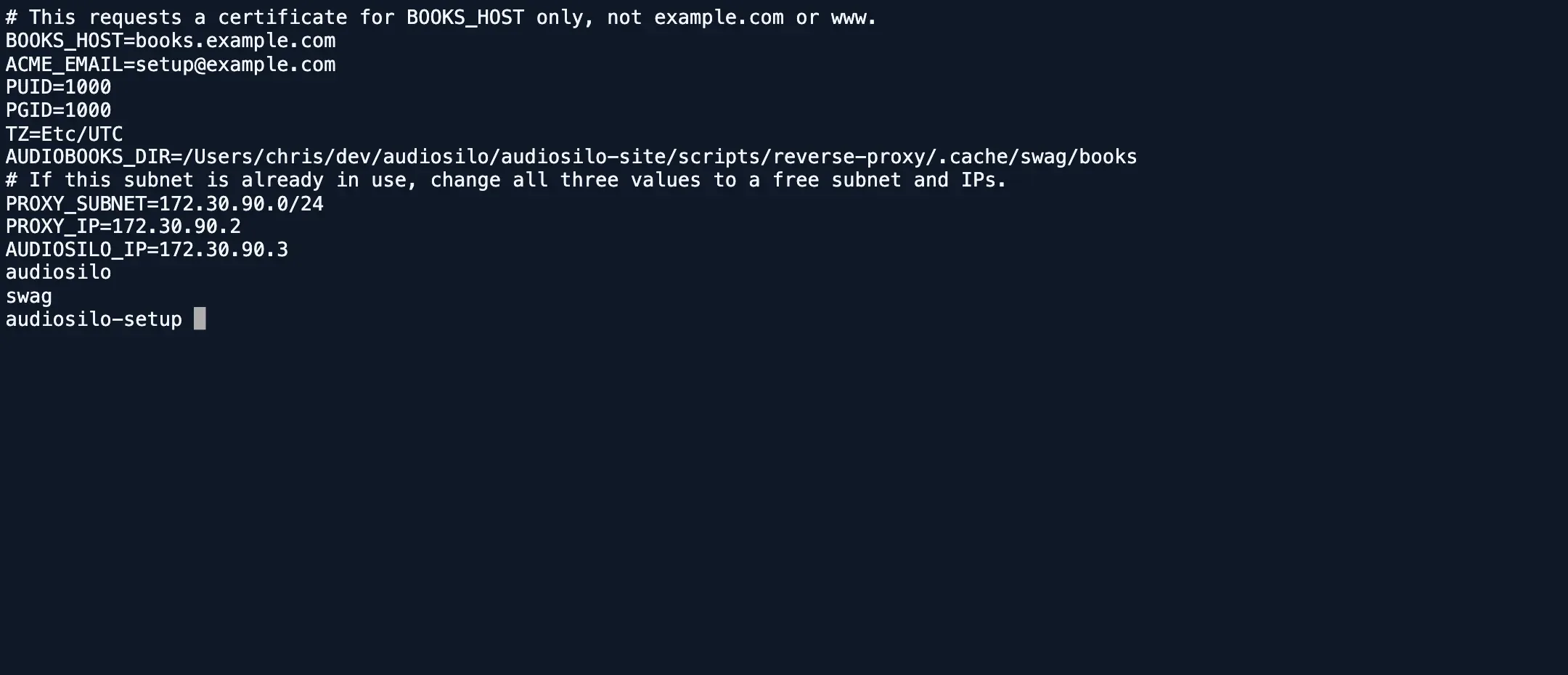
Open .env in an editor, for example nano .env, and replace these values:
BOOKS_HOST=books.example.com
[email protected]
PUID=1000
PGID=1000
TZ=Etc/UTC
AUDIOBOOKS_DIR=/srv/audiobooks
PROXY_SUBNET=172.30.90.0/24
PROXY_IP=172.30.90.2
AUDIOSILO_IP=172.30.90.3
| Value | What to enter |
|---|---|
BOOKS_HOST | Just the hostname: no https://, port or path. |
AUDIOBOOKS_DIR | The existing absolute folder on the host that holds your books. |
PUID, PGID | The output of id -u and id -g, for a user/group that can read that folder. On Unraid, commonly 99 and 100. |
TZ | Your timezone, such as Europe/London. |
Quote any value that contains spaces.
If 172.30.90.0/24 overlaps your LAN, VPN or another Docker network, change all three PROXY_SUBNET, PROXY_IP and AUDIOSILO_IP to an unused subnet and two addresses in it, such as 172.30.91.0/24, 172.30.91.2 and 172.30.91.3. Fixed addresses stop Docker giving the proxy’s IP to AudioSilo, which trusts only the proxy IP with /32.
The AudioSilo service already contains the settings that matter:
AUDIOSILO_BIND: 0.0.0.0:8080
AUDIOSILO_TLS_MODE: "off"
AUDIOSILO_PUBLIC_URL: https://${BOOKS_HOST}
AUDIOSILO_TRUSTED_PROXIES: ${PROXY_IP}/32
AudioSilo has no published host port: the proxy reaches it over the Docker network. The LinuxServer image keeps its configuration and database in ./audiosilo (mounted at /config) and reads your books at /audiobooks:ro. The first-party KodeStar image uses /data instead. See the LinuxServer AudioSilo reference.
Step 3: Check the SWAG configuration
location / {
    include /config/nginx/proxy.conf;
    include /config/nginx/resolver.conf;
    set $upstream_app audiosilo;
    set $upstream_port 8080;
    set $upstream_proto http;
    proxy_pass $upstream_proto://$upstream_app:$upstream_port;
}
This block is already in the downloaded audiosilo.conf, which also has the port 80 ACME challenge location, the HTTP-to-HTTPS redirect and the /config/nginx/ssl.conf include. Compose mounts it as /config/nginx/site-confs/default.conf for this dedicated SWAG instance.
In Compose, URL is the full BOOKS_HOST, SUBDOMAINS is empty and ONLY_SUBDOMAINS is false, so the certificate covers just books.example.com. VALIDATION=http needs public incoming TCP 80. SWAG keeps certificates and generated include files under ./swag. The LinuxServer SWAG documentation covers its certificate options; DNS validation is a separate setup with your DNS provider’s credentials.
Step 4: Start the stack and sign in
From the directory containing compose.yaml:
docker compose config --quiet
docker compose pull
docker compose up -d
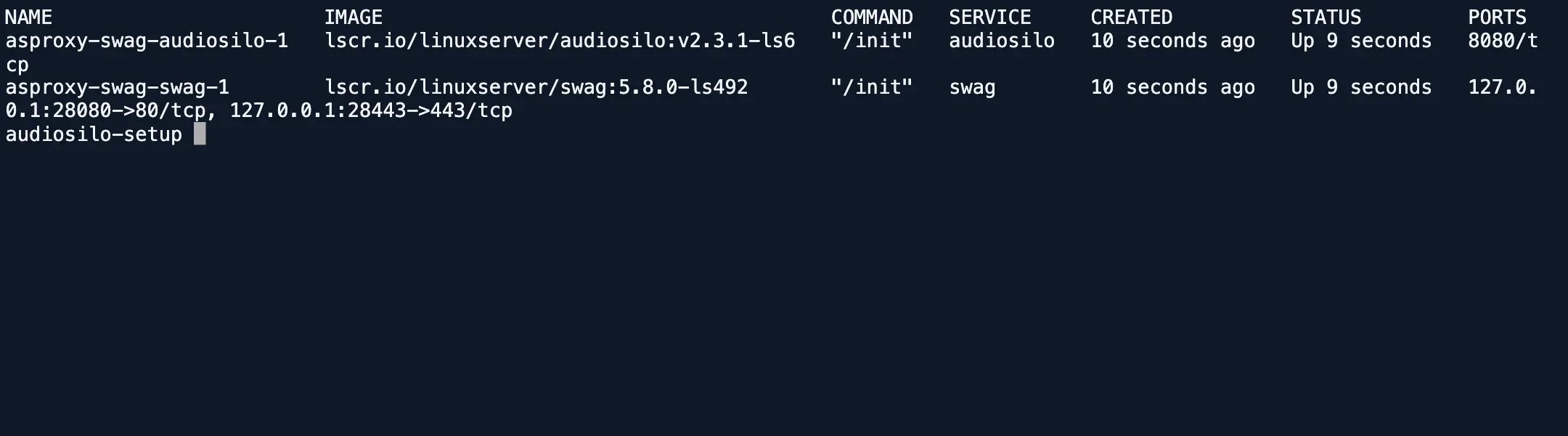
docker compose ps
docker compose logs swag
The config command should finish without errors and both services should be running. The proxy log should show no DNS, connection or ACME errors. On a public hostname, wait for a trusted certificate before signing in.
Now read AudioSilo’s first-run log:
docker compose logs audiosilo
On a new configuration directory it prints an admin password and auth code once. Save them privately; a restart does not print them again.
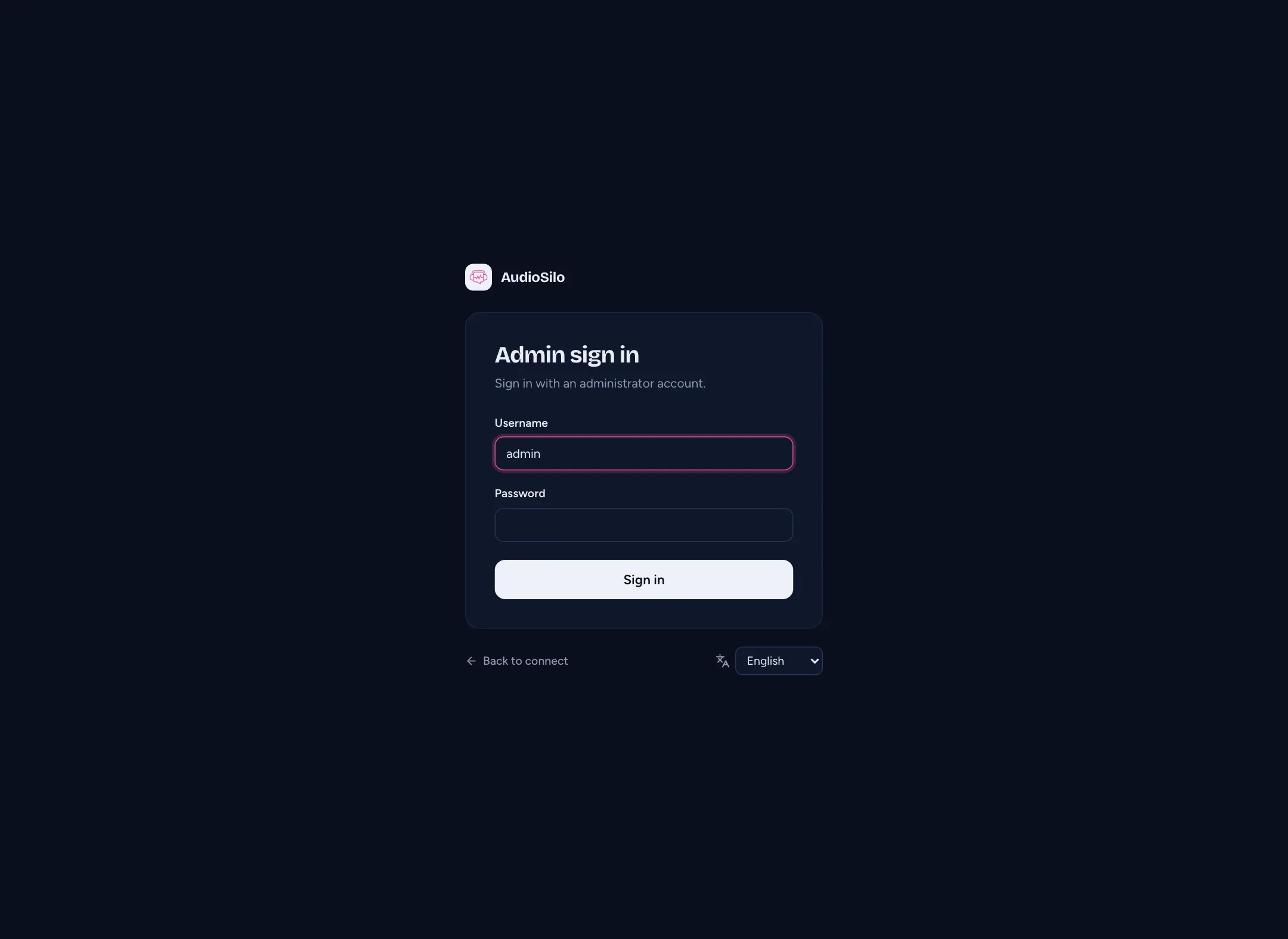
Open https://books.example.com/admin and sign in as admin with that password. Keep the auth code for Step 7.
The pinned download runs 2.3.1, which opens the console directly. A new server on 2.4.0 or later opens Set up your server first; Finish later takes you to the console to follow this guide.
Step 5: Check the AudioSilo settings
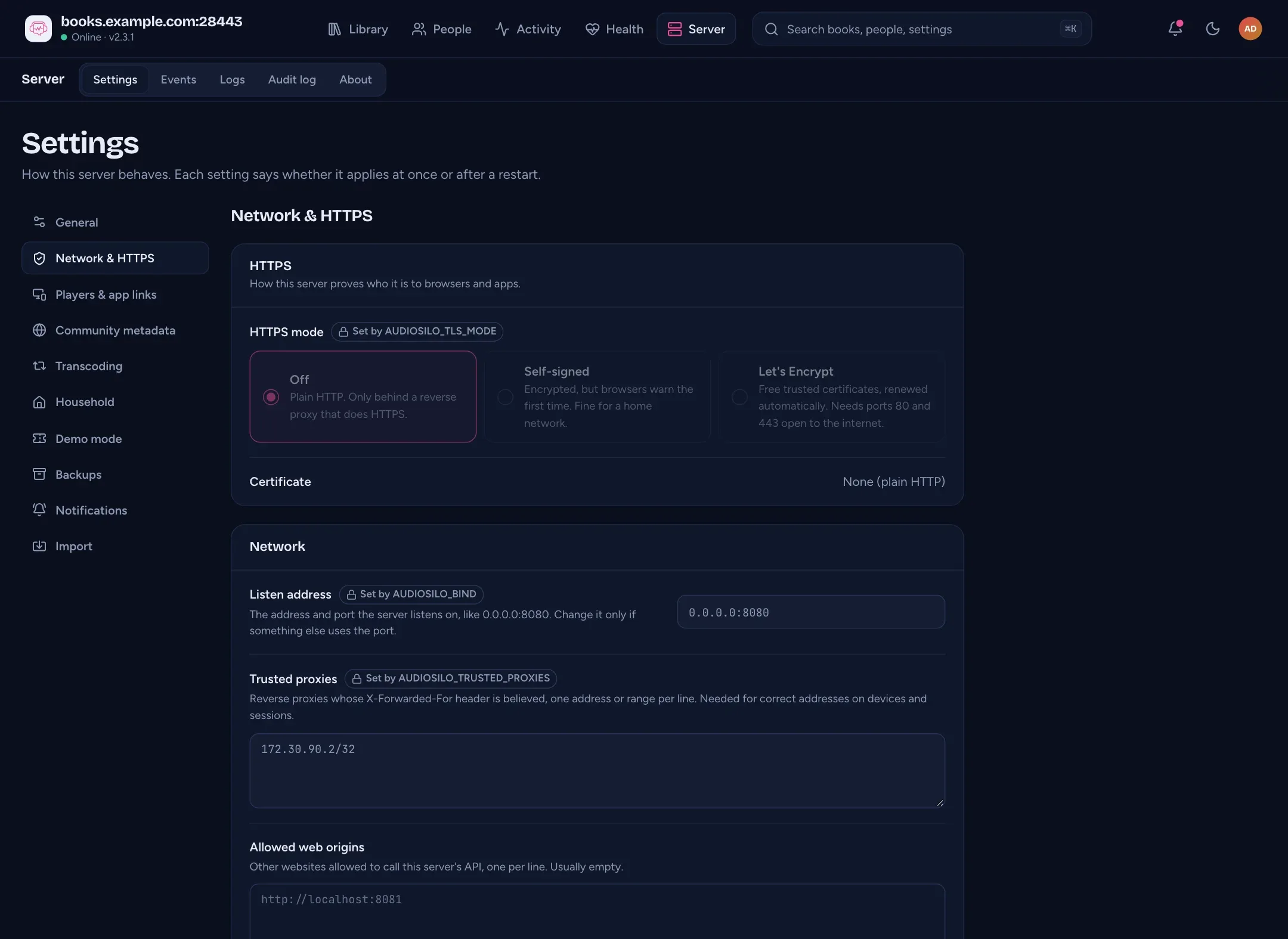
Open Server > Settings > Network & HTTPS. Confirm HTTPS mode is Off and Trusted proxies contains 172.30.90.2/32, or the address you chose.
Open Server > Settings > General. Confirm Public address is https://books.example.com, with no :8080.
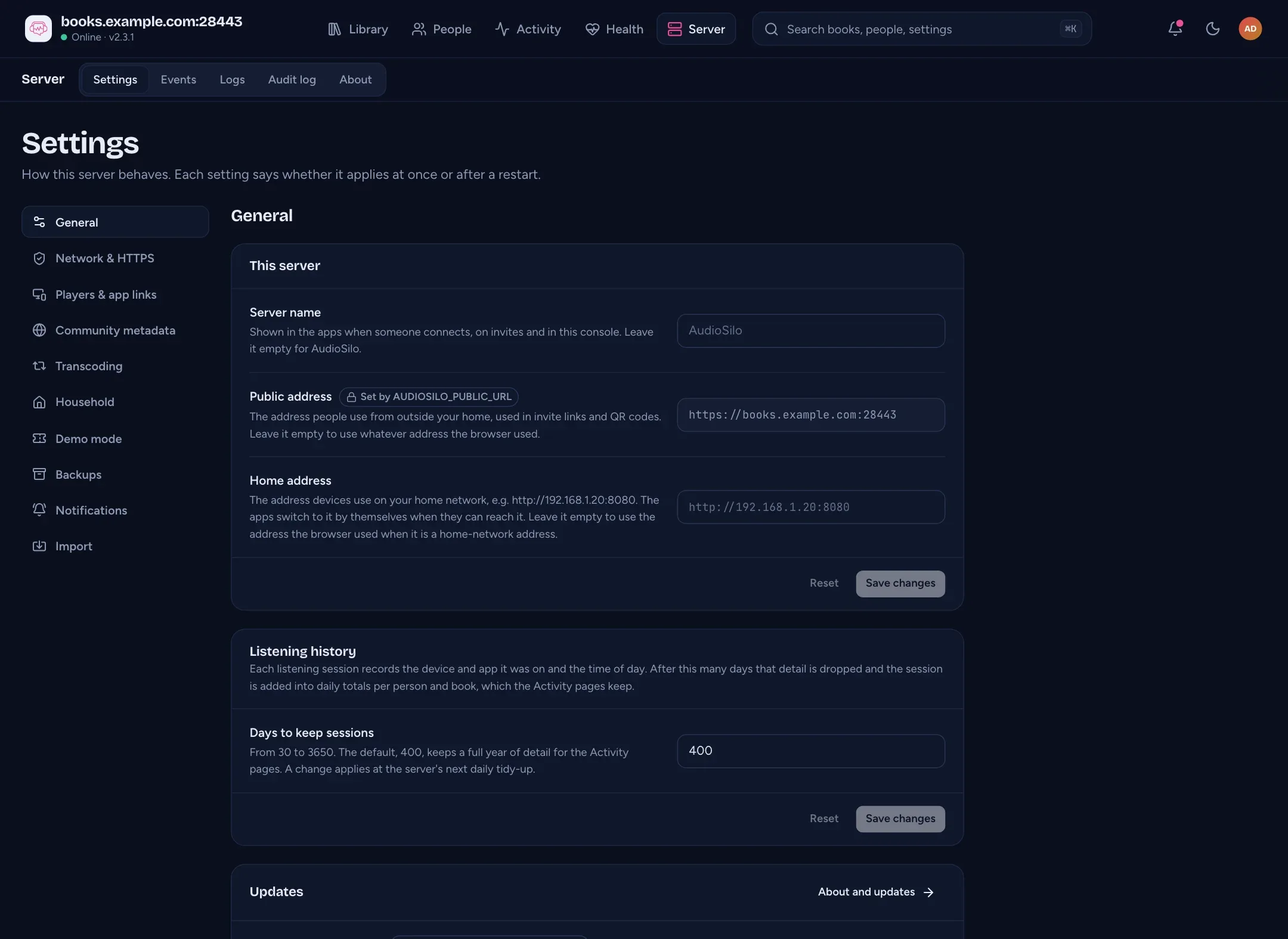
These fields are locked by environment variables, as expected: supported AUDIOSILO_* variables override config.yaml. To change one, edit Compose or .env and run docker compose up -d. docker compose restart keeps the old environment.
Trusted proxies decides whose forwarded client IP is believed for rate limits and sign-in lockouts. It does not disable HTTPS redirects. Trust the one proxy IP, not your whole LAN.
Step 6: Add your audiobook library
Go to Library > Libraries > Add library. Name it, set Folder to /audiobooks (the path inside the container) and click Add library and scan.
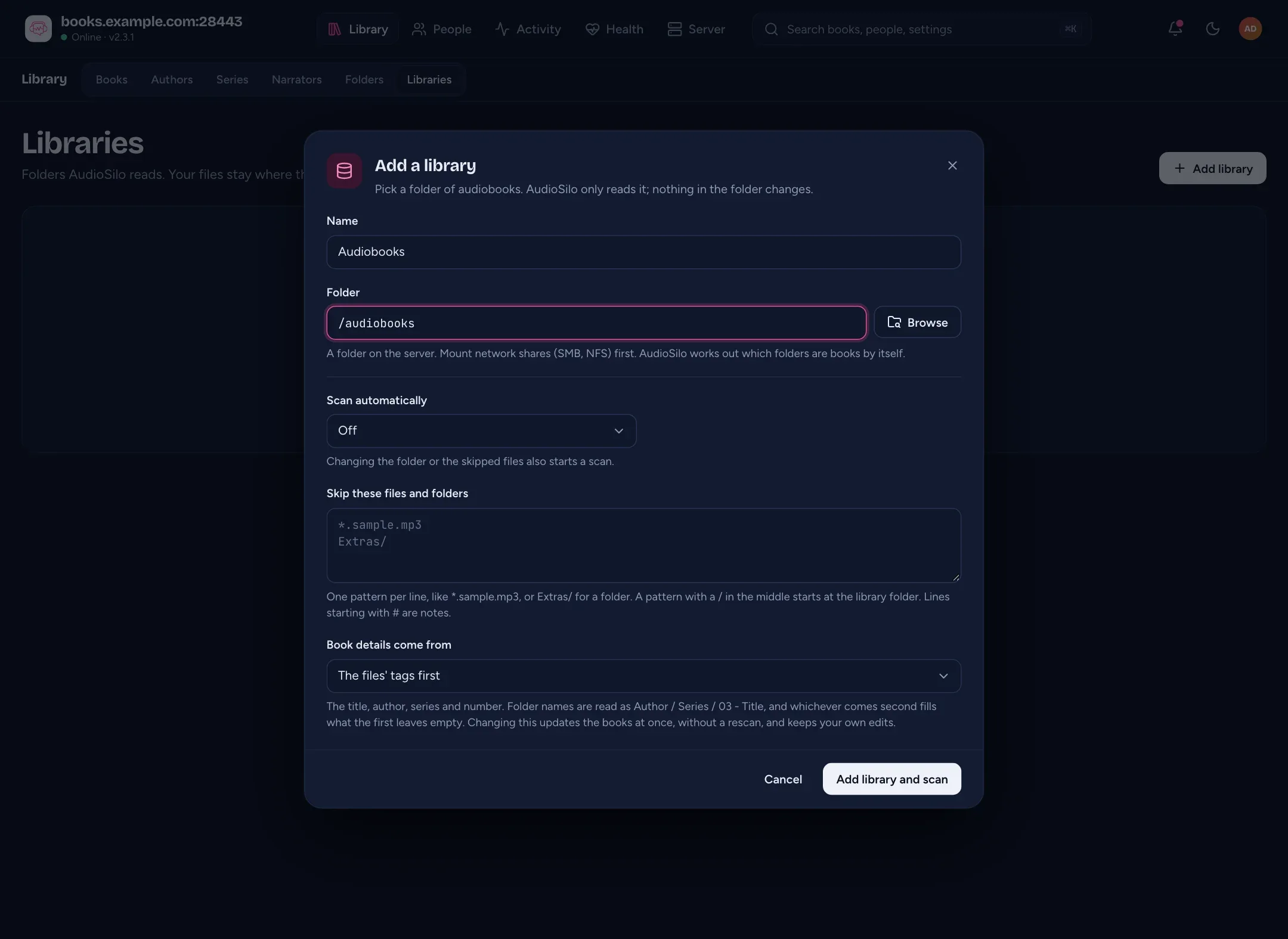
If the folder is empty, check the host path in .env, its mount and read permissions for your PUID/PGID. The mount is read-only, so keep managing files on the host. See the library documentation.
Step 7: Pair your phone and test playback
- Open
https://books.example.com/in a browser and enter the auth code. The connect page shows a pairing QR code. - In the AudioSilo iOS or Android app, choose Scan a QR code and scan it. Pairing the admin account is fine.
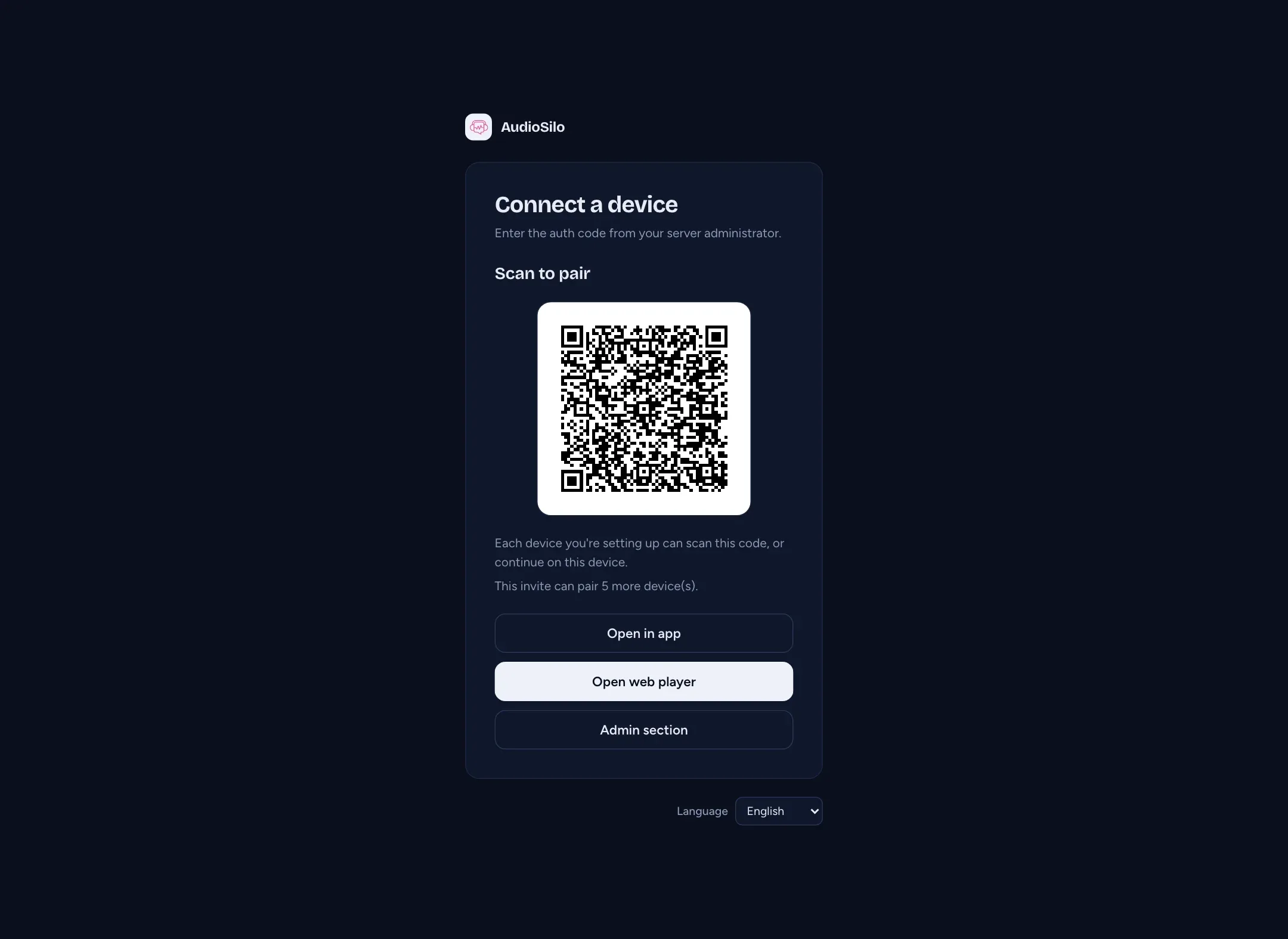
For someone else, use People > Invite someone. They open the invite link in a browser for a pairing QR, or enter the server address and invite code in the app. App 2.4.0’s scanner also accepts the invite card’s QR directly; earlier apps need the connect page’s pairing QR.
Open https://books.example.com/web. Start a book, seek forward, pause and resume.
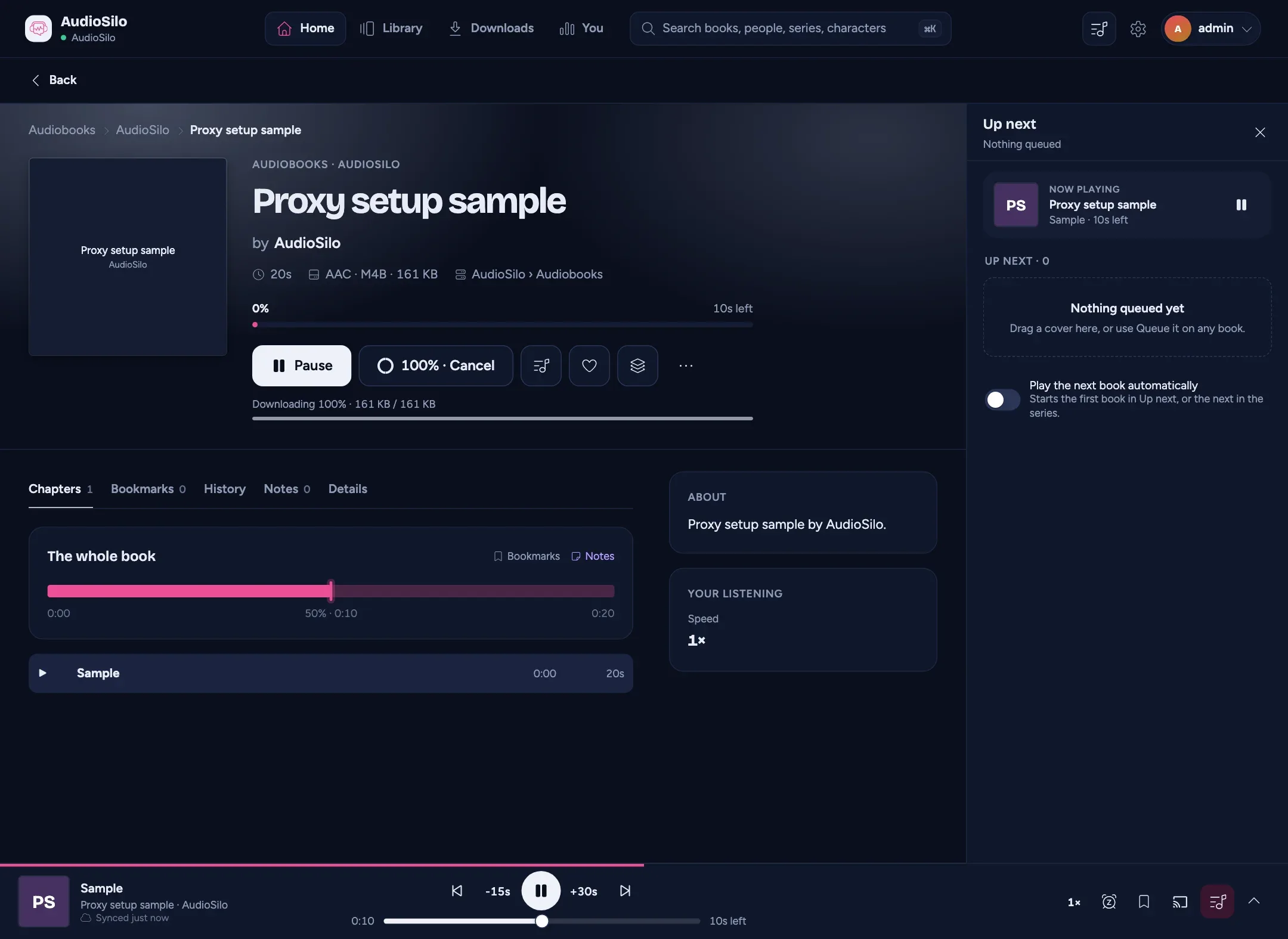
Then turn Wi-Fi off on your phone and repeat the test over mobile data. Home Wi-Fi alone can’t confirm remote access. If mobile data works but Wi-Fi does not, check your router’s NAT loopback support or point the hostname at the host’s LAN address in local DNS.
Leave Home address empty unless you have a separate home endpoint with a certificate your app trusts. This stack does not publish port 8080, so http://192.168.x.x:8080 won’t work. Pair your phone and Connecting and signing in cover other sign-in routes.
Troubleshooting
- An
https://...:80redirect or a redirect loop: confirmAUDIOSILO_TLS_MODEis exactlyoffon the running container and recreate it withdocker compose up -d. The upstream must be HTTP on 8080. - A changed setting is ignored: environment variables win. Check
docker compose configfor the resolved values, then recreate the service. - A port is already allocated: see If you already run SWAG, or use a different host.
- A subnet overlap error: pick an unused
PROXY_SUBNETand updatePROXY_IPandAUDIOSILO_IPto match. - SWAG never reaches a ready state: read
docker compose logs swagfor the actual Certbot error. HTTP validation needs public port 80, correct DNS and no stale AAAA record. - The default SWAG page appears: the custom file is not mounted as
site-confs/default.conf, or you are reaching a different SWAG instance. Checkdocker compose configand the published ports. - 502 or host not found: the upstream is
http://audiosilo:8080, and both services must share theproxynetwork. The resolver include lets nginx find AudioSilo’s current address after it is recreated. - nginx config check fails: keep the standard
ssl.conf,proxy.confandresolver.confincludes. Look in the error for a missing file or a duplicatedefault_server. This file replaces the generated default site.
Check the nginx configuration with:
docker compose exec swag nginx -t
If you already run SWAG
Use the proxy that already owns ports 80/443; the download above is for a new proxy instance.
- Keep your existing SWAG certificate settings, data directory and default HTTP server. Make sure its certificate covers
books.example.comwith your current validation method. A wildcard certificate for*.example.comalready covers it. - Copy only the HTTPS
serverblock from the download into a new file such asswag/nginx/proxy-confs/audiosilo.subdomain.conf. - In that file, change
server_name _;toserver_name books.example.com;, and removedefault_serverfrom bothlisten 443lines. Keep the three SWAG include files and the HTTP upstream. Do not replace an existing SWAG default site with this configuration. - Join AudioSilo to SWAG’s Docker network, keeping its service name
audiosiloresolvable there. - Set AudioSilo’s TLS mode to
off, public URL tohttps://books.example.comand trusted proxy to the actual SWAG IP with/32. Use a stable SWAG container address. - In your existing project, run
docker compose exec swag nginx -t, thendocker compose exec swag nginx -s reload.
Updating the pinned images
The download pins the image versions in What we tested; docker compose pull never picks a newer one by itself.
- Back up AudioSilo’s configuration/database and the proxy’s certificate state. Use AudioSilo’s backup feature, or stop the container before copying its database files.
- Edit the
image:tags incompose.yamlto the versions you want. - Pull and recreate:
docker compose pull
docker compose up -d
docker compose ps
Read both logs, then repeat sign-in, pairing, playback and seeking. docker compose down keeps named volumes; down -v removes them.
From server 2.5.0, the server also copies its database before an upgrade that changes it (Before an upgrade in Settings > Backups). How to back up a self-hosted app before you upgrade it covers rolling back.
What we tested
| Date | 21 October 2026 |
| AudioSilo | LinuxServer v2.3.1-ls6 image |
| Proxy | SWAG 5.8.0-ls492 |
| Test address | books.example.com, mapped locally, HTTPS on 28443 |
The screenshots come from a local Docker test of these files, hence :28443; the public recipe uses ports 80/443 and no port in Public address. The test used a local certificate authority, so public DNS, router forwarding and Let’s Encrypt issuance were not verified: do the outside checks in steps 1 and 7. It did check the admin UI, locked settings, library access, connect-page pairing, the web player, audio, redirects and forwarded client IPs through the proxy.
For background, see remote access and HTTPS and the docs’ Remote access page.
Changes to this post
-
Rewritten to be shorter and easier to read. No facts changed.
-
Server 2.5.0 copies its database before an upgrade that changes it; links the backup-before-upgrading guide.
-
Noted the Set up your server flow a new 2.4.0 server opens on first sign-in, and that app 2.4.0 scans the invite card's QR directly.
-
First published.
Up next
- 1 How to back up a self-hosted app before you upgrade it Guide · 3 min
- 2 Listen to your audiobooks away from home: remote access and HTTPS Guide · 4 min
- 3 How to pair your phone with your AudioSilo server using a QR code Tutorial · 4 min