How to pair your phone with your AudioSilo server using a QR code
Tutorial · 4 min · 9 chapters
Sign the iPhone, iPad or Android app in to a self-hosted audiobook server by scanning a QR code. Invites, adding more devices, and what to do when it can't connect.
Published Checked against App 2.0.0, server 2.3.1 on
How to pair your phone with your AudioSilo server using a QR code
4:00 minutes to read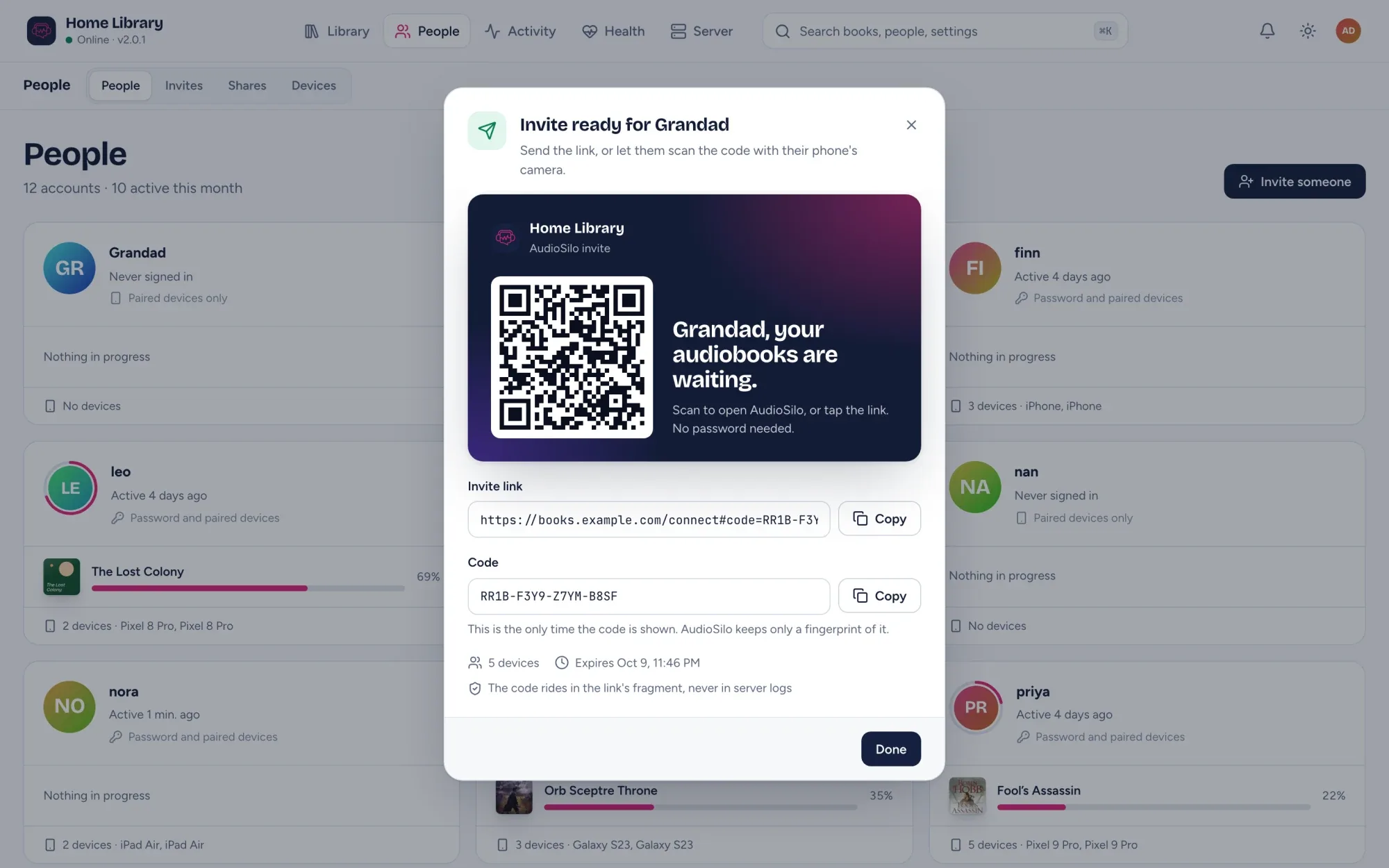
Signing a phone in to your own audiobook server should take seconds, not a server address, a username and a password typed on a tiny keyboard. In AudioSilo it’s a QR code: the admin makes an invite, the listener scans it with the app, and they’re in. This guide covers that, adding more devices later, and the one setup step the phone apps need.
Before you start: the apps need a trusted address
A fresh AudioSilo server uses a self-signed certificate. A browser lets you click past its warning; the iPhone and Android apps can’t. So for the apps (2.0.0, the version in the stores), the server needs an address with a certificate they trust: Let’s Encrypt through the server’s own autocert mode, or a reverse proxy you already run. Listen away from home sets this up, and it’s what you want for listening outside the house anyway.
Not there yet? The web player works in the meantime. Open https://your-server:8080/web in the phone’s browser, accept the certificate warning and sign in; everything in this guide works there too, except scanning a QR code from inside the app.
Step 1: Install the app
AudioSilo is free on the App Store for iPhone and iPad and on Google Play for Android.
Step 2: Make an invite (admin)
In the admin console, go to People and click Invite someone. One dialog does everything:
- Their name, as it shows in the player.
- What can they listen to?: all libraries, one library, one of your shares, or decide later.
- Devices it can pair: 5 by default, so one invite covers a phone, a tablet and a browser.
- Expires after: 1 day by default.
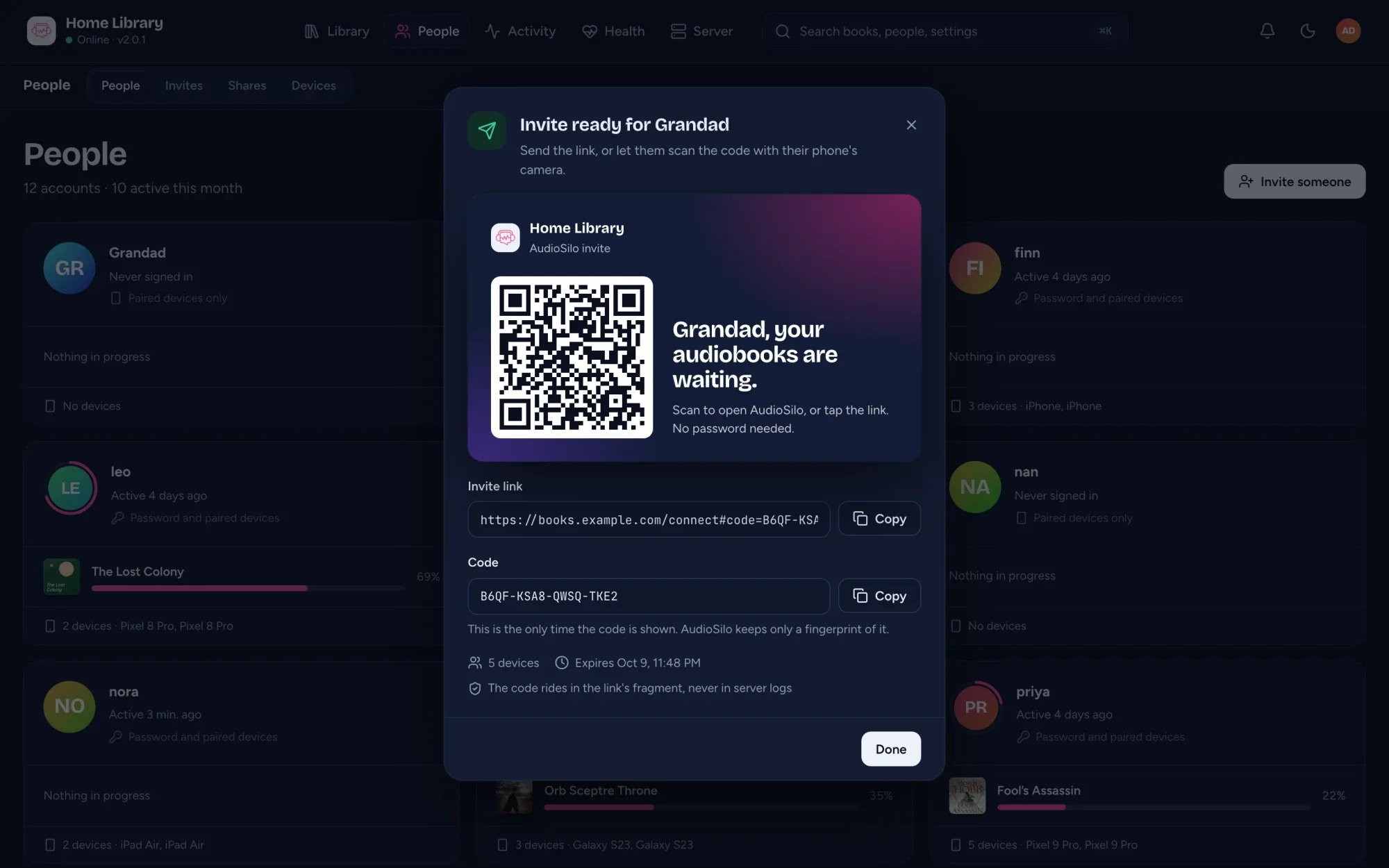
Click Create invite. You get a QR code, the invite link and the code on its own. The new account has no password; most listeners never need one.
The code is shown only this once: the server keeps just a fingerprint of it. Need it again later? Rotate the invite for a fresh one.
Step 3: Scan it with the app
On the phone, open AudioSilo. On its connect screen, tap Scan a QR code and point the camera at the invite’s QR. The app signs in and opens on your library.
Other ways in, if the phone and the screen aren’t in the same room:
- Send the invite link. Opening it shows the server’s connect page, which signs the invite in and offers Open in app and Open web player.
- Type it. Enter the server address in the app, tap Continue, choose Invite code and type the code.
As the admin, you can also pair your own phone with the auth code the server printed on its first start: enter it on the server’s connect page.
Step 4: Add your other devices
Already signed in on one device? You don’t need another invite. On your account page in the player, under Pair another device, tap Show a pairing code. A QR appears that works for 10 minutes, for one device. Scan it with the other device’s app, or use Share link (in the apps) or Copy link (on the web) to send it. When it fades, Make a new code gives you a fresh one.
Step 5: Set a password (optional, but worth it)
An invited account starts without a password, which is fine day to day. Setting one on your account page (Set a password, at least 8 characters) gives you a way back in on a new phone without asking anyone for a fresh invite.
At home and away
When your server has both a home address and a public one, the app learns both while it pairs and switches between them by itself: the quick route on your Wi-Fi, the public address when you’re out. It checks that the server at the home address really is yours before using it. The admin sets the home address under Server > Settings > General.
When it doesn’t connect
- “Couldn’t reach …”: check the address for typos and that the server is running. A home address like
192.168.1.20:8080only works on your home network. - The app can’t connect to a server that works in the browser: the server is still on its self-signed certificate. See the first section.
- “That QR code isn’t an AudioSilo pairing code.”: you scanned something else, such as a QR for a web page. Scan the invite’s or the connect page’s QR.
- An expired or used-up invite: ask the admin for a new one, or rotate it on the Invites page.
- Too many tries: the server slows down repeated failed sign-ins on purpose. Wait a few minutes.
The docs cover every route in Connecting and signing in.
Changes to this post
-
First published.
Up next
- 1 Listen to your audiobooks away from home: remote access and HTTPS Guide · 4 min
- 2 Self-hosted audiobook server: what it is and how to run one with Docker Guide · 5 min
- 3 AudioSilo player tips: 14 features worth knowing Tip · 4 min