Self-hosted audiobook server: what it is and how to run one with Docker
Guide · 5 min · 9 chapters
A self-hosted audiobook server streams the audiobooks you own to every device and keeps your place in sync. What you need, the options, and a Docker setup in a few steps.
Published Checked against Server 2.3.1, app 2.0.0 on
Self-hosted audiobook server: what it is and how to run one with Docker
5:00 minutes to read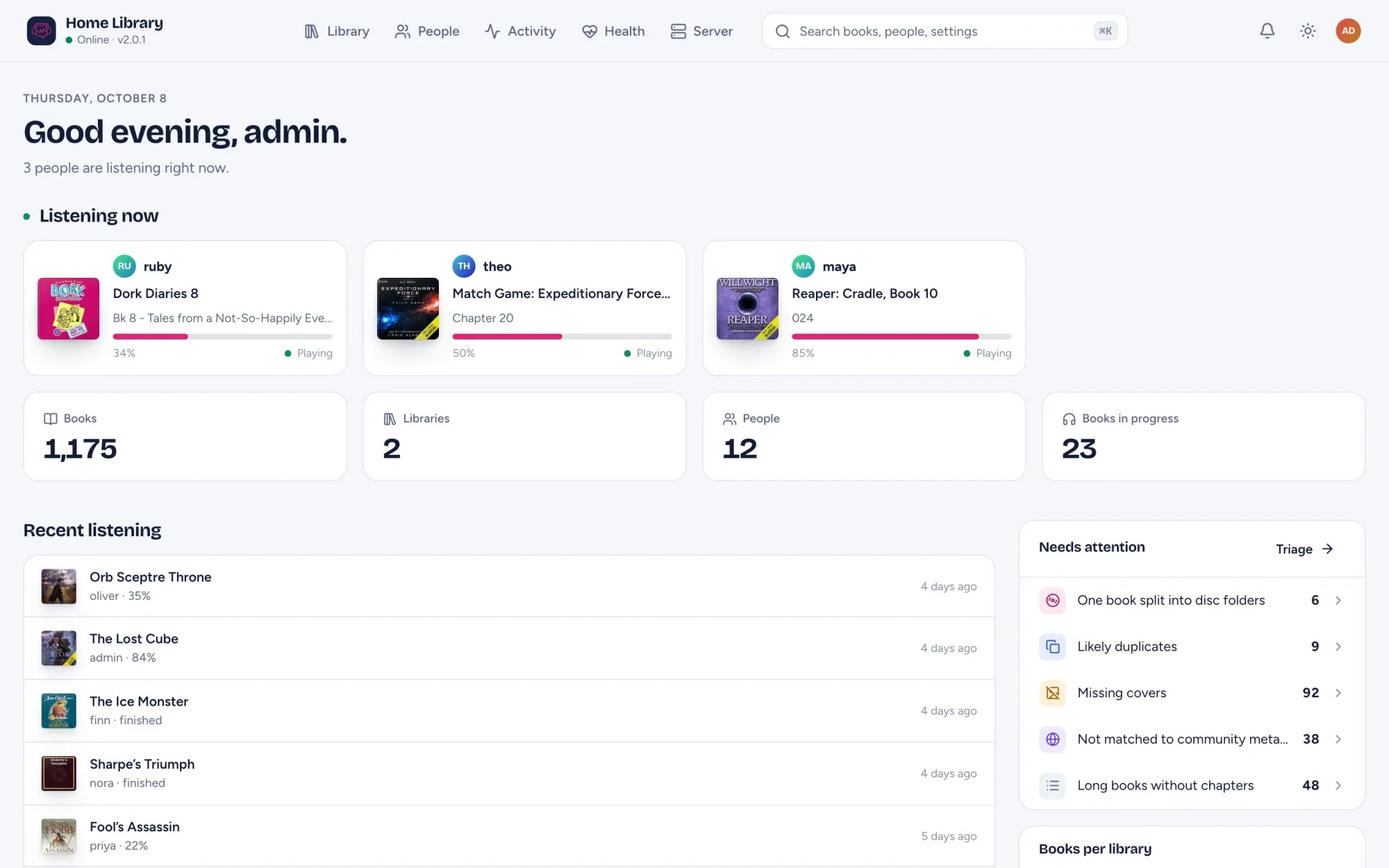
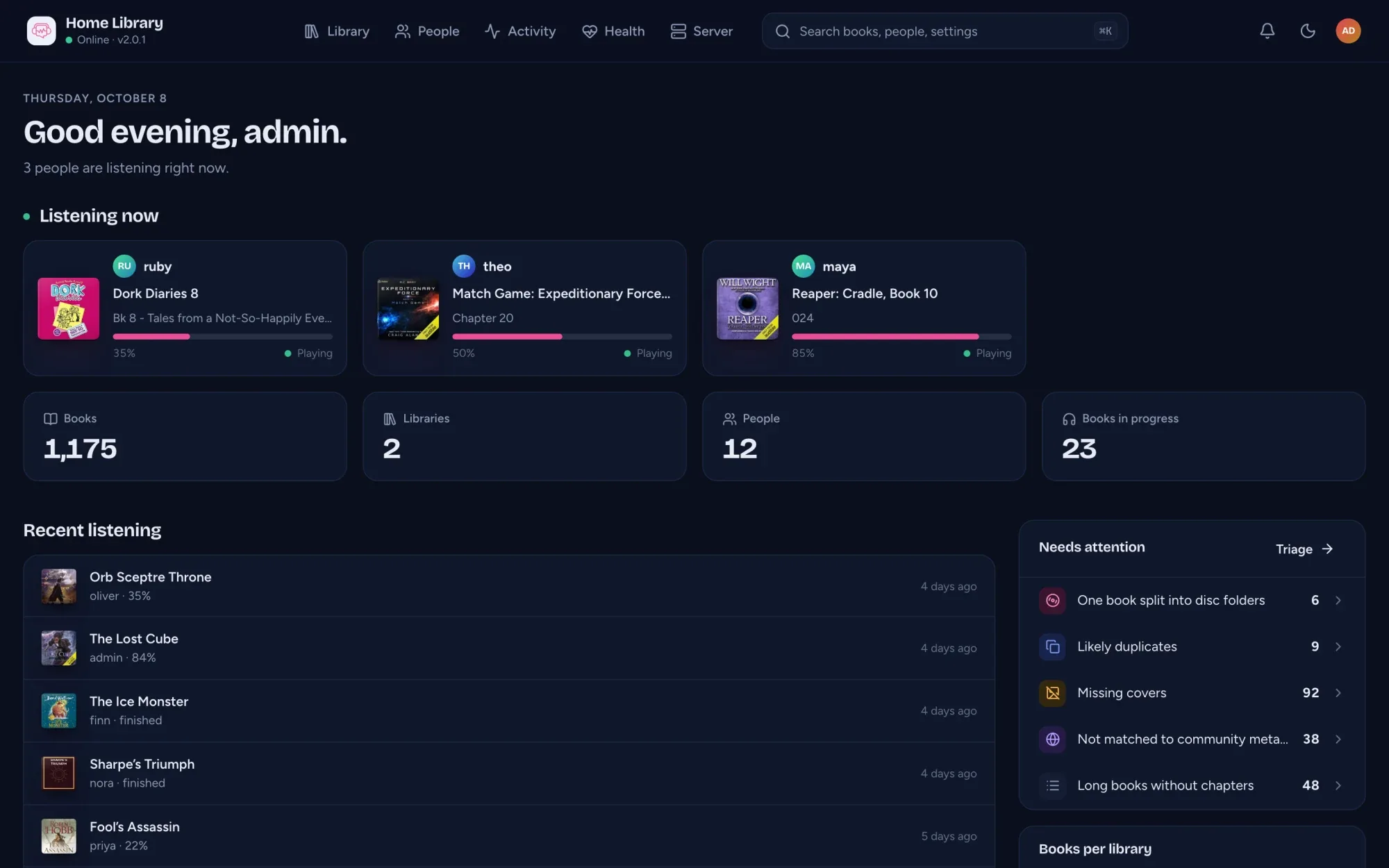
A self-hosted audiobook server is a program you run on your own computer, NAS or home server that turns a folder of audiobook files into your own private audiobook service. It streams the books to a web browser and to phone apps, keeps your place in each book in sync across devices, and gives everyone in the house their own account. Your files stay where they are, and nobody else holds your library.
This guide explains what you need, the main choices, and how to get one running with Docker using AudioSilo.
Why run your own
If your audiobooks are files (CD rips, DRM-free purchases, public-domain recordings, backups of books you bought), a plain file player only gets you part of the way. A server built for audiobooks adds:
- One place in every book, on every device. Pause on your phone, carry on in the browser at your desk.
- Streaming from anywhere, with seeking, chapters and covers, plus downloads for offline listening.
- Separate accounts for each person, each with their own progress, bookmarks and stats, and control over who sees which books.
- A player made for books: a sleep timer, speed control, chapter-aware seeking and bookmarks, instead of a music player’s shuffle and playlists.
And because the files remain the source of truth, you can stop using any server at any time and your library is still just a folder.
What you need
- A machine that stays on. A NAS, a mini PC, an old laptop or a Raspberry Pi with a 64-bit OS all work. AudioSilo is a single Go program with a built-in database, so it doesn’t need much.
- Your audiobooks as files, in a folder that machine can read. M4B, M4A, MP4, MP3, FLAC, OGG and Opus are all indexed. A tidy layout helps; see How to organise audiobook folders.
- Docker, ideally, though a plain binary works too (below).
The main options
Audiobookshelf is the best-known open-source audiobook server. It also handles podcasts and ebooks, can upload books and write metadata into files, and its mobile apps are in beta. If you’re weighing the two, Moving from Audiobookshelf compares them honestly.
General media servers such as Plex and Jellyfin can play audio files, but they are built around music and video, so audiobook features like per-book progress and chapter handling depend on workarounds or third-party apps.
AudioSilo, which this site is about, is audiobook-only. The server is open source (AGPLv3), never writes to your files, and comes with a web player built in and free apps for iPhone, iPad and Android in the App Store and Google Play. The rest of this guide sets it up.
Install AudioSilo with Docker
The image ghcr.io/kodestar/audiosilo-server holds the server, the web player and ffmpeg, so one container is a complete setup. It runs on amd64 and arm64.
1. Create a compose file
Make a folder (say ~/audiosilo) and save this as docker-compose.yml in it, changing /srv/audiobooks to wherever your books are:
services:
  audiosilo:
    image: ghcr.io/kodestar/audiosilo-server:latest
    restart: unless-stopped
    ports:
      - "8080:8080"
    volumes:
      - ./data:/data                  # database, config, certificates
      - /srv/audiobooks:/library:ro   # your books, mounted read-only
    environment:
      PUID: "1000"                    # owner of /data (Unraid: 99)
      PGID: "1000"                    # group of /data (Unraid: 100)
      # AUDIOSILO_PUBLIC_URL: "https://books.example.com"  # used in QR/invite links
      # AUDIOSILO_TLS_MODE: "off"     # only behind a TLS-terminating reverse proxy
      AUDIOSILO_WEB_DIR: /app/web
Two mounts matter. /data holds everything the server creates (its database, config.yaml and certificates), so keep it and back it up. /library is your books, mounted read-only: the server never writes to them, so :ro costs nothing and protects them.
2. Start it and save the credentials
docker compose up -d
docker compose logs
On the first start the server creates an admin account with a random password and prints it once:
========================================================
 AudioSilo first-run setup - store these now, shown once
========================================================
  Admin username : admin
  Admin password : <generated password>
  Auth code      : <generated code>
  Config file    : /data/config.yaml
Save the password and the auth code now. The server only keeps hashes of them, so it can’t show them again. There is never a default password.
3. Open it
Browse to https://your-server:8080. The server uses a self-signed certificate out of the box, so your browser warns you the first time; accept it to continue. Three addresses matter:
/is the connect page, where a listener pairs a device./adminis the admin console. Sign in asadminwith the printed password./webis the web player.
4. Add your library
In the admin console, click Add your first library and point it at /library, the path inside the container. The books are browsable straight away; the scan fills in durations, chapters and covers in the background.
Without Docker: the single binary
GitHub Releases has builds for Linux (also as .deb and .rpm with a systemd unit), macOS and Windows, for amd64 and arm64. Run it with a data folder:
./audiosilo --data ./data
It finds ffmpeg on your system or downloads it on first use. ./audiosilo --setup --data ./data gives you a browser setup wizard instead of the printed password. See Install the binary.
Start listening
- In a browser: open
/webon your server. It works on phones too, and can be added to the home screen. - On iPhone, iPad and Android: install AudioSilo from the App Store or Google Play and pair it with a QR code. The apps can’t accept a self-signed certificate the way a browser can, so they need the server at an address with a trusted certificate; How to pair your phone and Listen away from home cover this.
- Everyone else in the house: in the admin console, Invite someone creates their account and shows a QR code and link. No password needed.
Keeping it updated
docker compose pull && docker compose up -d
Your data folder and books are untouched by updates. Back up the data folder before a big upgrade; the server also snapshots its own database every night by default.
Next steps
- Listen away from home: HTTPS, a reverse proxy and the apps’ home and away addresses.
- Fix covers and series: match your books to the community database.
- A tour of the admin console, in four and a half minutes.
- Or try the player first in the live demo, with public-domain books and nothing to install.
Changes to this post
-
First published.
Up next
- 1 How to organise audiobook folders so every player gets them right Guide · 5 min
- 2 Listen to your audiobooks away from home: remote access and HTTPS Guide · 4 min
- 3 How to pair your phone with your AudioSilo server using a QR code Tutorial · 4 min