Fix wrong covers, titles and series in your audiobook library
Tip · 4 min · 10 chapters
Swapped tags, missing covers, a series spelled three ways. How to match books to the community database one at a time or all at once, without touching your files.
Published Checked against Server 2.3.1 on
Fix wrong covers, titles and series in your audiobook library
4:00 minutes to read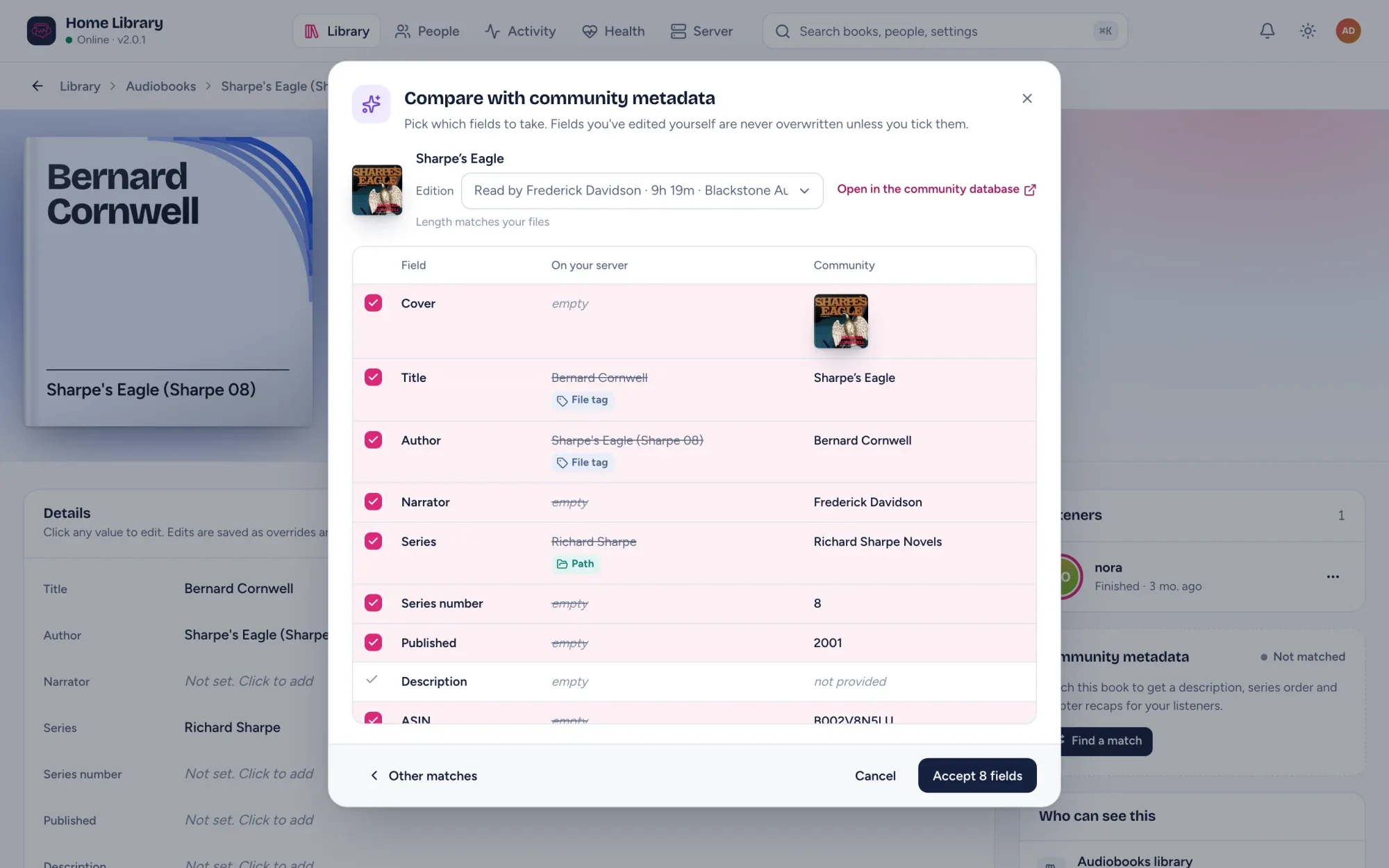
Audiobook tags are famously messy: a title tag holding the author’s name, no cover, “Book 3” of a series you’ve never heard of, or the same series spelled three ways. In AudioSilo you fix these from the admin console, with help from the free community database at meta.audiosilo.app, and none of it touches your files: every fix is stored as an override in the server’s database, survives rescans, and can be reverted.
Start with Health
Health in the admin console turns each scan into a to-do list: books without a cover, books not matched to the community database, unreadable files, folders that look like they need attention, and possible duplicates. Each list comes with its fix, and anything you decide to leave can be ignored.
Match one book
Open a book and click Match with community metadata.
- The dialog searches straight away using the book’s tags, its length, its ASIN or ISBN, and its folder names: the top folder as the author, the one holding the book as the series, the book’s own folder as the title. So a book whose tags have the title and author swapped is still found when its folders are named well.
- Possible matches shows each candidate with its cover, a match score, its narrators and whether its length fits your files. Pick one and click Compare fields.
- If the book was recorded more than once, pick the right edition.
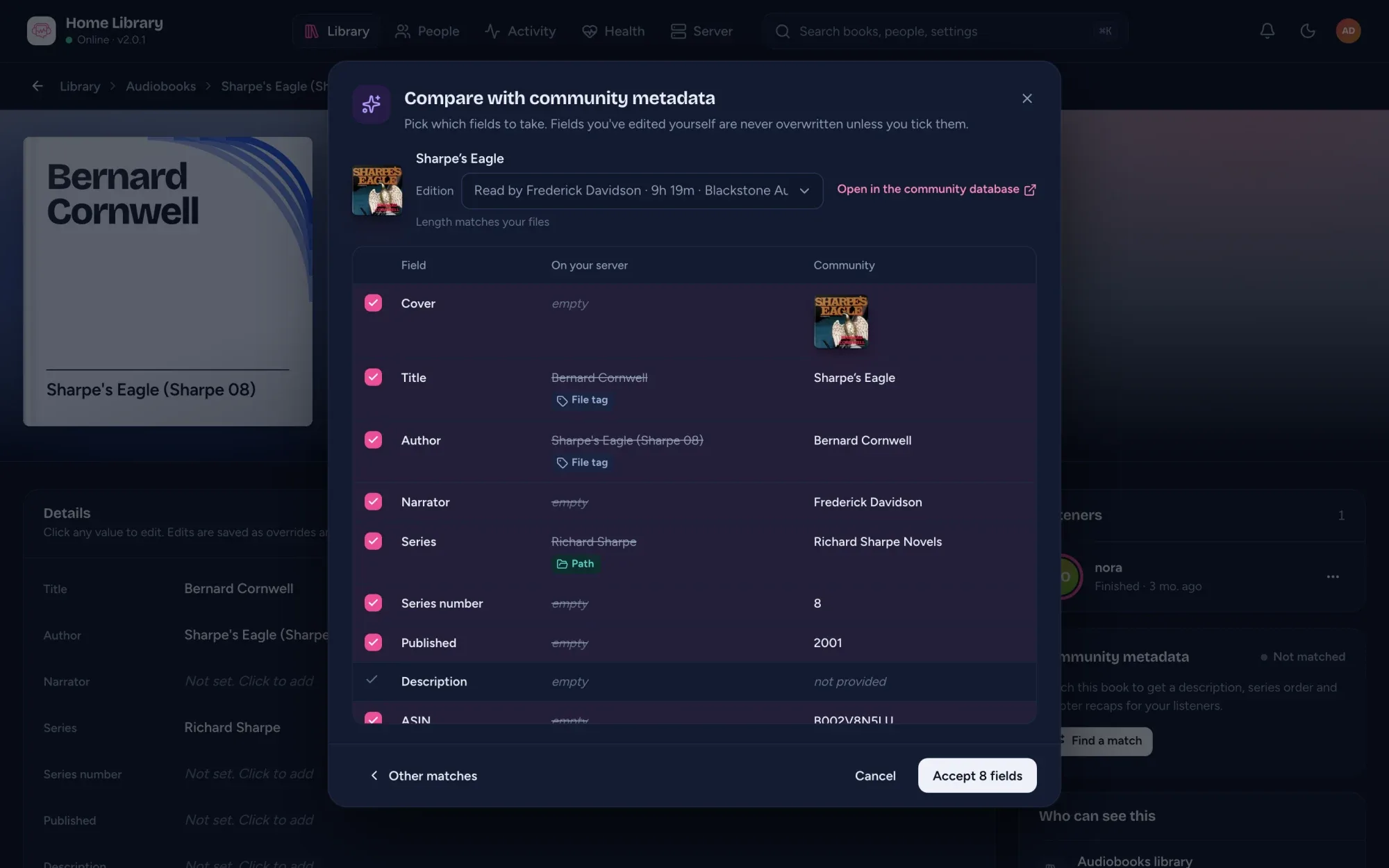
- Tick the fields to take. Fields you’ve edited yourself start unticked, so nothing of yours is overwritten unless you say so. The cover row starts ticked only when your book has no cover art of its own.
- Click Accept.
Taken values are marked Community on the book’s page and can be reverted one by one.
Match the whole library at once
Health > Not matched has a Match automatically card. Pick a library, click Find matches and the server looks every book up in the background. When it’s done, Review and apply sorts the results:
- Confident: a strong match, clearly ahead of the next candidate, with an ASIN or ISBN, and a recording whose length is within 10% of your book’s. These start ticked.
- To review: lower scores or close calls. Tick the ones that are right.
- Not found and Not checked: the rest.
Then choose what to write:
- ASIN and ISBN only marks books as matched and changes nothing else.
- Fill in what’s missing (the default) fills empty fields and takes a cover only for books with none.
- Use community values also replaces fields that differ.
Your own edits are never replaced, whichever you choose. Nothing changes until you click Apply.
If you set your Audible marketplace (Server > Settings > Community metadata), matches take the ASIN from your store when a recording is sold in several.
Fix a series
- One series, many spellings. Names that differ only in capitals, accents, punctuation or spaces (“He Who Fights With Monsters” and “…with Monsters”) are already treated as one series. Health > Series spelled several ways sets one spelling on every book (server 2.3).
- Omnibus editions. A series number can be a range: type
1-3and the book shows as #1-3, and “next in series” carries on with book 4 (server 2.3). - Books in more than one series. Guards! Guards! is Discworld #8 and City Watch #1. Add extra series under Other series on the book’s Details card; community matches fill them in too (server 2.1).
- Folders named better than tags? Switch the library to take details from folder names first (Edit library). It updates every book at once, without a rescan.
Fix a cover
- Drop a
cover.jpginto the book’s folder, or - upload one on the book’s page in the admin console (stored by AudioSilo, not in your folder), or
- tick the community cover when you match.
Since server 2.2, community covers in the players’ series rails are fetched by your server and handed to the player, so listeners’ browsers only ever talk to your server.
Start again if a bulk match went wrong
Server > Settings > Community metadata > Danger zone > Clear community matches undoes every community match in one library, or all of them, so you can match again from fresh. Your own edits and uploaded covers stay (server 2.1).
Bonus: chapters and better details for matched books
- Community chapters (server 2.1): a matched book with no chapters of its own, or only one per file, gets its recording’s chapter list, fitted onto your audio. A book with only broad chapters is offered the detailed ones.
- Fill in matched books (Health > Not matched, server 2.3) refreshes the details of books that already have an ASIN or ISBN, for example from an Audiobookshelf
metadata.json.
What matching sends, and how to send nothing
The player’s “About this book” lookup sends only a book’s ASIN or ISBN. Matching sends what it needs to search: the tagged title, author and series, the length, up to three folder names, and anything you type. Nothing about who listens, and no full file paths.
If you’d rather nothing is looked up over the internet, set community metadata to Keep a local copy (metadata.mode: mirror, server 2.3). The server downloads the whole community database (about 450 MB to download, 1.8 GB on disk) and answers every lookup from it. Or turn community metadata off entirely with one switch.
A book the database doesn’t know?
The community database is built by its users. If a book is missing, you can add it at meta.audiosilo.app, and everyone running AudioSilo benefits from the next release.
The full reference is Books and metadata and Library health in the docs.
Changes to this post
-
First published.
Up next
- 1 How to organise audiobook folders so every player gets them right Guide · 5 min
- 2 A tour of the AudioSilo admin console Tutorial · 3 min
- 3 AudioSilo Server 2.3: household members, Chromecast and a local metadata copy Release · 4 min