Moving from Audiobookshelf to AudioSilo: what carries over, what doesn't
Guide · 5 min · 8 chapters
An honest comparison of Audiobookshelf and AudioSilo, and the steps to switch without losing anyone's progress, finished books, bookmarks or listening stats.
Published Checked against Server 2.3.1, app 2.0.0; Audiobookshelf 2.37.1 on
Moving from Audiobookshelf to AudioSilo: what carries over, what doesn't
5:00 minutes to read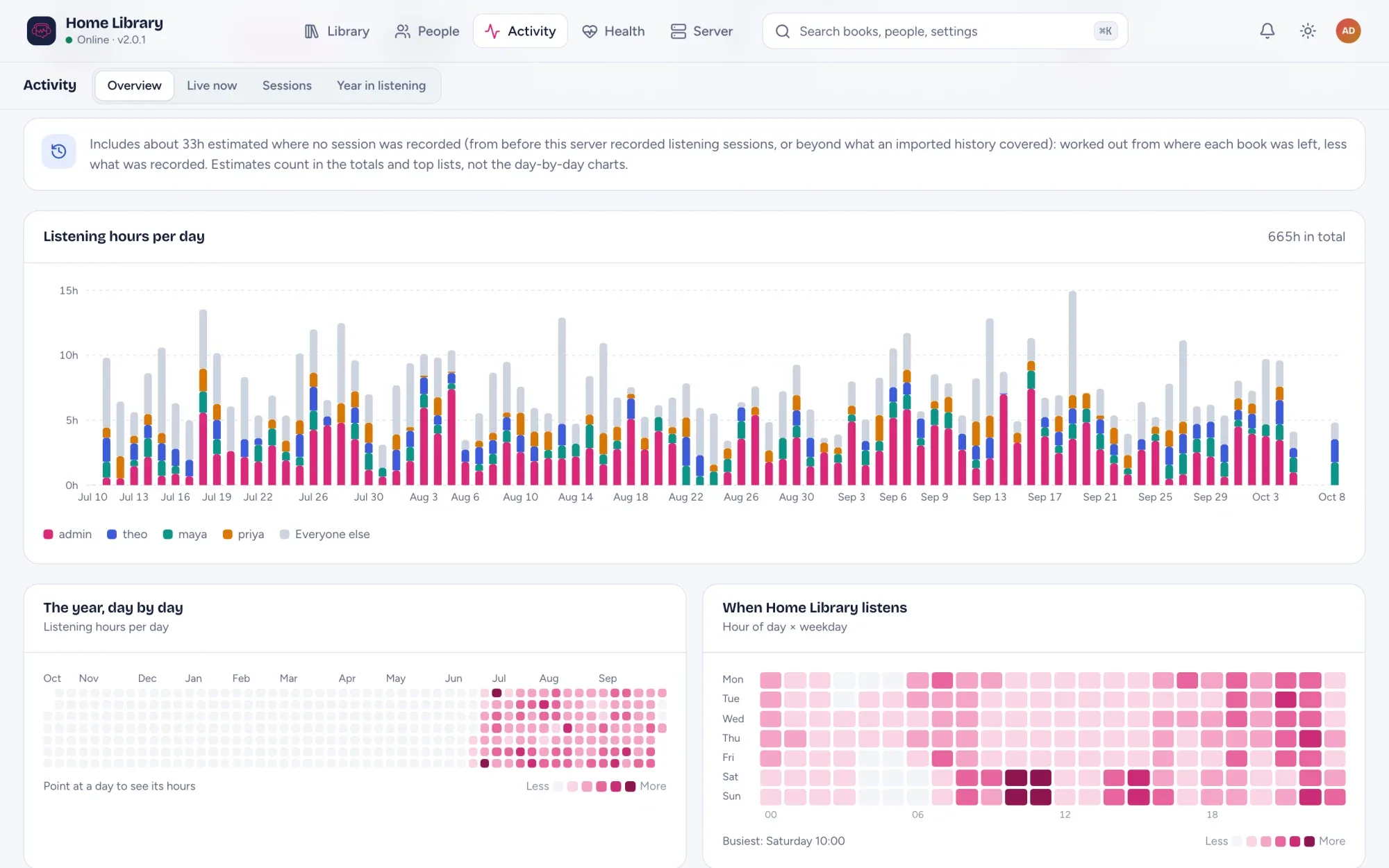
You can move from Audiobookshelf to AudioSilo without starting over. AudioSilo reads the same folders, picks up the metadata.json files Audiobookshelf leaves beside your books, and imports each person’s listening history: sessions, progress, finished dates and bookmarks. Podcasts, ebooks, collections and playlists don’t come over. Both can run side by side while you decide, because AudioSilo only reads your files and only reads from Audiobookshelf.
First, an honest look at whether you should.
Audiobookshelf and AudioSilo compared
Both are self-hosted, open-source servers that run in Docker, keep each person’s progress in sync and give every user their own account. They differ in scope and in philosophy.
| Audiobookshelf | AudioSilo | |
|---|---|---|
| Licence | GPL-3.0 | Server AGPLv3 |
| What it serves | Audiobooks, podcasts, basic ebooks (EPUB, PDF, CBR, CBZ) | Audiobooks only |
| Your files | Can upload books, embed metadata and covers into files, and merge files into an M4B | Never writes to your library; edits live in its database |
| Phone apps | Android app in beta on Google Play; iOS app in beta on TestFlight (its beta is currently full) | iPhone, iPad and Android apps (2.0.0) in the App Store and Google Play |
| Web player | Yes, installable | Yes, installable, with offline downloads |
| Casting | Chromecast from the web app and the Android app | Chromecast from the web player (server 2.3, Chromium browsers over HTTPS) |
| Metadata | Fetches from several sources | Community database at meta.audiosilo.app, with spoiler-safe recaps and characters for the books that have them |
Stay with Audiobookshelf if you rely on podcasts, ebooks, uploading through the web, or having metadata written into your files. AudioSilo does none of those.
AudioSilo suits you if you want the server to treat your folders as read-only, want phone apps from the stores, or like a player built around the whole book: time left at your speed, an undo for accidental jumps, a sleep timer that can fade out and marks where you dozed off, and a Year in listening.
You don’t have to choose straight away. The rest of this guide runs both at once.
Using Audiobookshelf and just want better metadata? AudioSilo’s community database also works as a custom metadata provider for Audiobookshelf.
Step 1: Run AudioSilo on the same folders
Point AudioSilo at the folders Audiobookshelf already reads, mounted read-only. With Docker, the books mount looks like this:
    volumes:
      - ./data:/data
      - /srv/audiobooks:/library:ro
The two servers can share the folders happily: AudioSilo never writes to them. Self-hosted audiobook server has the whole compose file.
Both servers expect one folder per book under Author/Series/ or Author/, so a library laid out for Audiobookshelf usually scans cleanly here. See How to organise audiobook folders for the details.
Step 2: Let it read Audiobookshelf’s metadata.json
If Audiobookshelf’s Store metadata with item setting was on, each book folder has a metadata.json holding your matches and corrections. Since server 2.3.1, AudioSilo reads it:
- The title, authors, narrators, series and number, published year, description, ASIN and ISBN go over what the audio tags say, as they do in Audiobookshelf. An empty value in the file doesn’t clear the tag’s.
- A book with an ASIN or ISBN there counts as matched straight away, so community details and series rails work without matching it by hand.
- Your own edits in AudioSilo still win, and the book page marks values from the file as Audiobookshelf.
- Edit a book in Audiobookshelf and the next scan picks it up. AudioSilo never writes to the file.
Step 3: Create everyone’s accounts
In the admin console, Invite someone creates an account, gives it access to books and shows a QR code and link. Two tips that make the import smoother:
- Use the same usernames as in Audiobookshelf: the import then pairs people up for you.
- Give everyone access to their books first. The import skips books a person can’t listen to here.
Step 4: Import the listening history
Open Server > Settings > Import.
- Connect. Enter the Audiobookshelf address as the AudioSilo server sees it (the server fetches the history, not your browser) and an API token from Audiobookshelf (Settings > Users, or Settings > API Keys in newer versions). An admin or root token can read every user; a regular user’s token imports only that user. The token is used for the fetch and never stored.
- Map the people. Each Audiobookshelf account goes to an AudioSilo person, or to Don’t import. Then choose which listening to bring: the default, before each person started using AudioSilo, means nothing they played on both servers is counted twice.
- Review. For each person you see the hours, sessions, books matched (by path, ASIN, ISBN, or title and author), finished books, books with progress and bookmarks, plus a list of books that didn’t match and why.
- Apply. It’s written in one go, and an import can be undone later.
Progress only moves forward: an import never rewinds a book or unfinishes a finished one.
What comes over and what doesn’t
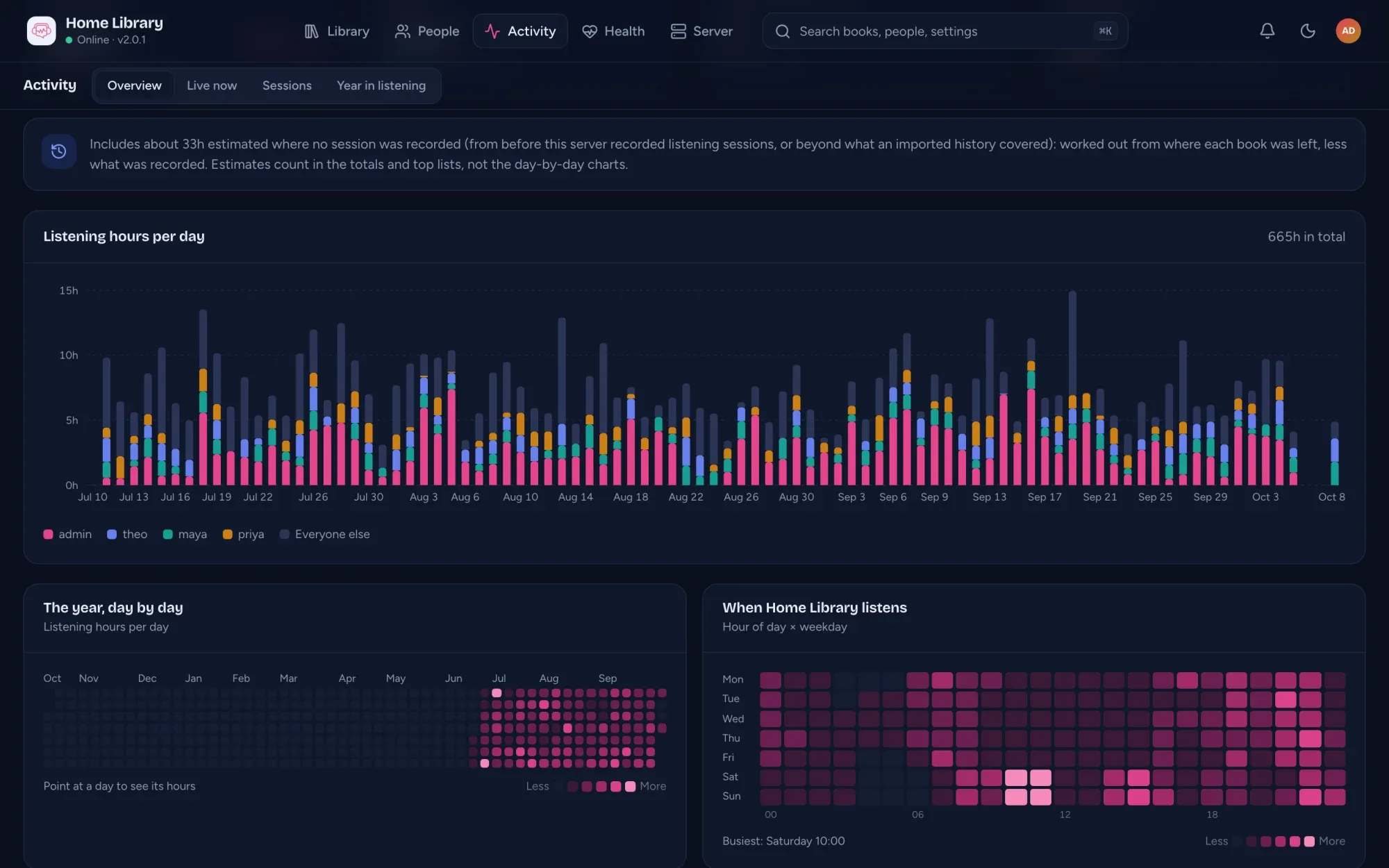
Comes over: listening sessions with their real dates (so stats, the listening calendar, streaks and the Year in listening carry on), progress, start and finish dates, and bookmarks.
Doesn’t: podcasts, collections, playlists, ebooks, and accounts or passwords. Each server keeps its own.
The full walkthrough is Importing from Audiobookshelf in the docs.
Step 5: Match what’s left and pair the devices
- Health > Not matched lists books without an ASIN or ISBN. Match automatically looks them up in the community database and waits for your review. See Fix covers and series.
- Everyone installs the AudioSilo app, or uses the web player at
/web, and signs in with their invite: How to pair your phone.
Step 6: Decide
Keep both running for a while. Audiobookshelf isn’t changed by any of this, so if AudioSilo isn’t for you, you’ve lost nothing. If it is, re-run the import later for anyone who kept listening in Audiobookshelf: a new import for a person replaces their previous one, so nothing is counted twice.
Changes to this post
-
First published.