AudioSilo player tips: 14 features worth knowing
Tip · 4 min · 16 chapters
Undo an accidental jump, let the sleep timer fade out and mark where you dozed off, keep the next books downloaded, set your skip lengths, export your bookmarks and more.
Published Checked against App 2.0.0 (iPhone, iPad, Android); web player in server 2.0 and later on
AudioSilo player tips: 14 features worth knowing
4:00 minutes to read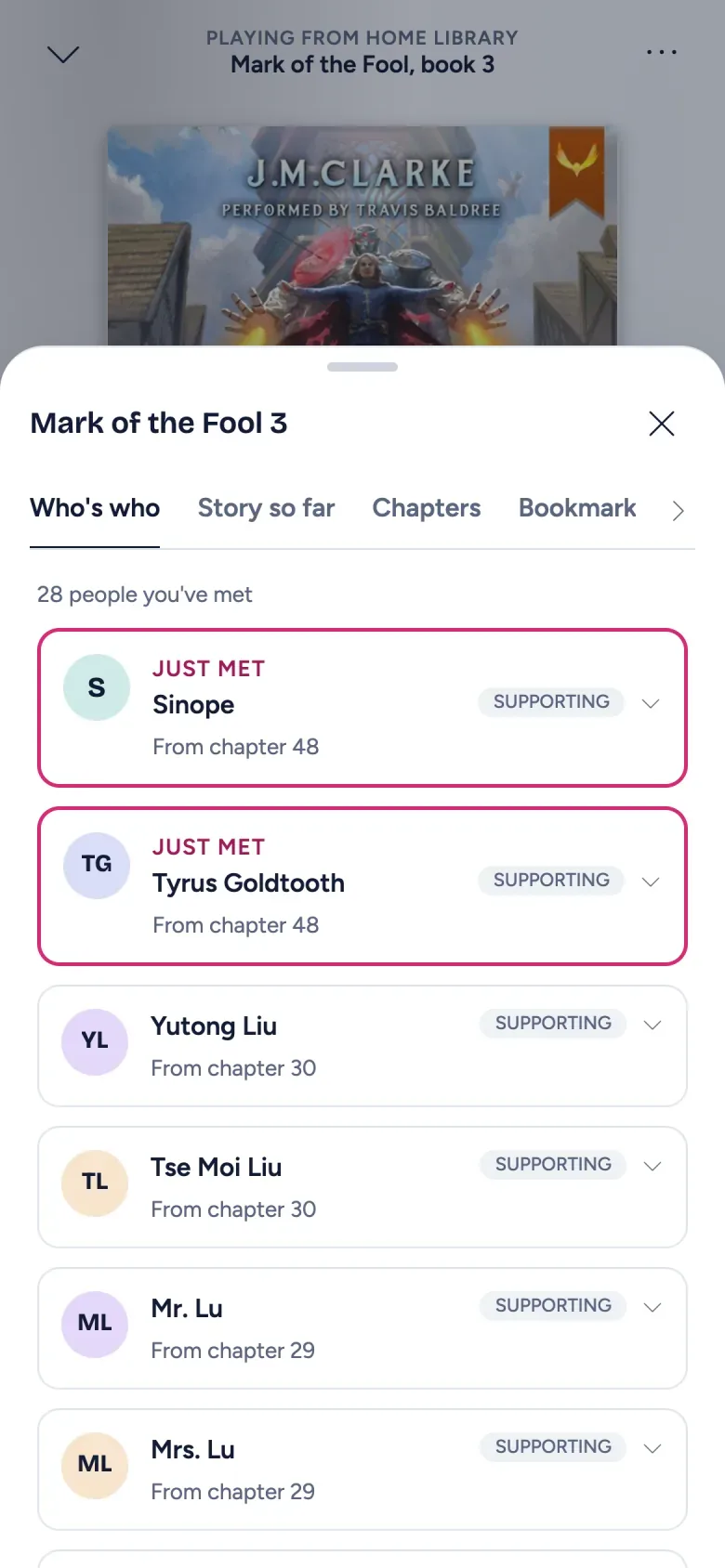
The AudioSilo player looks simple, but a lot of it is built for the way people actually listen to books: half asleep, in the car, in ten-minute gaps. These are the features worth knowing about. Everything here is in the iPhone, iPad and Android apps (2.0.0) and in the web player, unless it says otherwise. No server to hand? Try them in the live demo.
1. Undo a jump
Tapped the wrong spot on the seek bar, or skipped a chapter by accident? After any jump of more than a minute, a Back to chip appears for a few seconds, with the time you were at. Tap it and you’re back.
2. See the time left at your speed
Home, the player and the book page show the time left at your speed (“5h 12m left at 1.25x”), and Home shows when you’ll finish at your current pace. Speed goes from 0.5x to 2x in 0.05 steps and is remembered per book, so a fast narrator and a slow one can each have their own. Set the speed new books start at in Settings > Playback > Default speed.
3. Use the whole-book timeline
The full player has two bars: the main seek bar covers just the current chapter, so even a 30-hour book gives you fine control, and a slim timeline under it shows the whole book, with every chapter as a segment and your bookmarks and notes as pins.
4. Stop at the end of a chapter
The sleep timer can stop after 5 to 60 minutes, at the end of this chapter or a later one, or at the end of the book. Chapter endings are the natural place to stop, and you never wake up mid-sentence.
5. Let the sleep timer fade out
A minutes timer fades the volume out over its last 30 seconds instead of cutting off. If you’re still awake, tap Keep listening, or in the phone apps just shake the phone during those 30 seconds (or just after it stops) to restart the timer. Shake extends; it never cancels. If bumps in bed keep the book going, set Shake sensitivity to Low in Settings.
(Safari on iPhone and iPad can’t fade audio from a web page, so in the web player there the fade isn’t audible. The apps fade everywhere.)
6. Jump back to where you dozed off
When the sleep timer stops a book, it leaves a Fell asleep bookmark, and the Journal offers “You drifted off around 23:41. Jump back 4 minutes?” the next day.
7. Turn on the automatic sleep timer
Settings > Sleep > Auto sleep timer starts a sleep timer by itself for playback that begins in a window you choose (10 PM to 6 AM by default; it’s off until you turn it on).
8. Set your skip lengths and auto-rewind
Settings > Playback lets you set Skip back and Skip forward anywhere from 5 to 120 seconds (15 back and 30 forward by default), and Auto-rewind on resume, which replays the last few seconds when you come back to a book (up to 30 seconds; 5 by default) so you don’t lose the thread.
9. Give unchaptered books chapters
A single long file with no chapter marks gets virtual chapters every 30 minutes, so chapter skips and the chapter seek bar still work. Set the length from 5 to 60 minutes in Settings > Playback > Chapter length (unchaptered).
10. Keep the next books downloaded
On the Downloads page:
- Download automatically: Never, On Wi-Fi or Always.
- Keep the next books ready: keeps up to three of your next books (Up next first, then the series you’re in) on the device, while always leaving free space.
- Remove a download when you finish the book clears space as you go (on by default).
Downloads work in the web player too, when you open it over HTTPS. Progress you make offline syncs when you’re back online.
11. Line up books in Up next
Up next is a queue you can drag to reorder, with suggestions to carry on a series. It’s saved on your server, so the same queue follows you from phone to laptop.
12. Label your bookmarks, and export them
Bookmarks can carry a label (Quote, Favourite, Re-listen, Funny, Question) and a note, and notes can be pinned to a moment in the book. The Journal gathers your listening diary, bookmarks and notes from every book, searchable, and exports them to Markdown or CSV.
13. Search for a character you’ve met
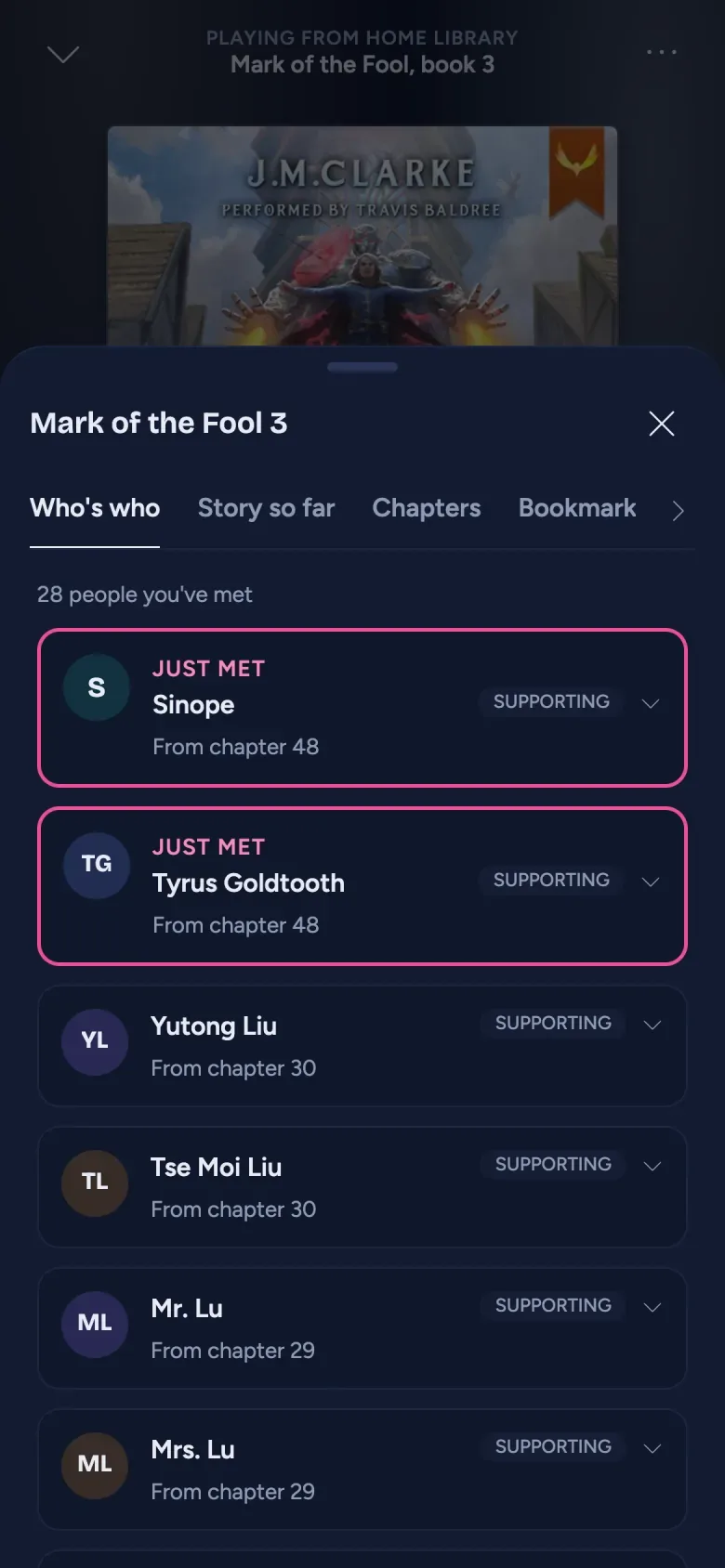
Forgot who someone is? Search finds books, authors, series, narrators and characters you’ve already met, never ahead of where you are. For books with community data, the full player’s Who’s who and Story so far do the same while you listen, revealing only up to your place. (Community recaps and characters exist for a minority of books so far, so this lights up only where someone has written them.)
14. In the web player: keyboard shortcuts and quick search
Press ? to see the keyboard shortcuts. ⌘K (Ctrl+K on Windows and Linux) opens quick search, which also runs actions like pause, sleep in 30 minutes or open the full player.
Bonus: home and away, without thinking about it
If your server has both a home address and a public one, the iPhone and Android apps switch between them on their own: the quick local route on your Wi-Fi, the public address when you leave. Your admin sets this once; see Listen away from home.
Everything above is covered in more depth in the player guide in the docs.
Changes to this post
-
First published.
Up next
- 1 AudioSilo 2.0: the redesigned player, now in the App Store and on Google Play Release · 3 min
- 2 How to pair your phone with your AudioSilo server using a QR code Tutorial · 4 min
- 3 M4B vs MP3 for audiobooks: chapters, size and what plays where Guide · 4 min